Travel Story Creator — turn travel photos into a trip video
Travel Story Creator
Hand over your travel photos. The video makes itself.
Hand over the photos. The app makes the video.
Travel Story Creator turns your travel photos into a video of the trip, automatically.
Which shots to use, what order they go in, where the transitions fall, how the map is drawn — the work that normally takes hours in an editor is done for you. There is no timeline to edit.
It runs on your PC and on your phone.

Get it for Windows

Get it for Android
Three steps
On a PC (Windows)
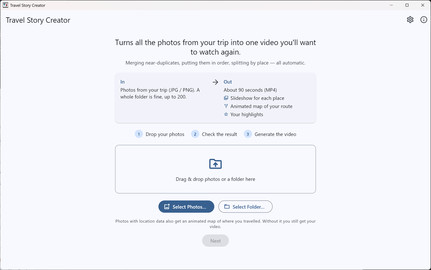
- Drop the photos inIndividual photos, or whole folders. Folders are read through for you.
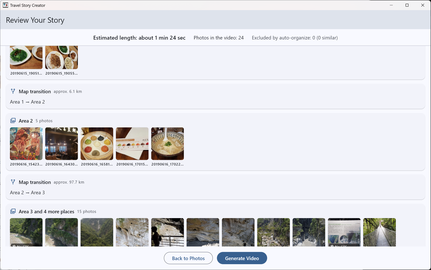
- Look over the storyboardWhich photos appear where, and how long the video will run.All of it is visible before anything is rendered.
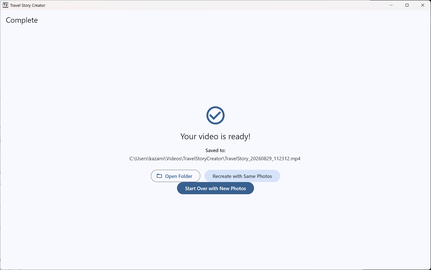
- SavePick a quality and a pace, choose a folder, and that is the entire setup.
On a phone (Android)
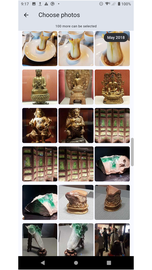
- Pick your photos
Straight from your gallery. They are grouped by day, so you can take a whole day at once. - Look over the storyboardThe order of the scenes, and the photos each one uses, before you start.
- Tap "Generate Video"The finished video goes into your device gallery.
Features
There is nothing to edit
Choosing the good shots, putting them in order, adding transitions, drawing a map — the app decides all of it.
There is no timeline to edit, and no technique to learn.
Near-duplicates are folded into one
Ten frames of the same view. The one where nobody blinked.
The app compares when each photo was taken, where it was taken and what it looks like, then keeps one photo to stand for each group. You never have to sit and decide which ones.
On a PC: up to 200 photos at a time. At most 60 make it into the video.
On a phone: up to 100 photos at a time. At most 60 make it into the video.
The map traces the journey
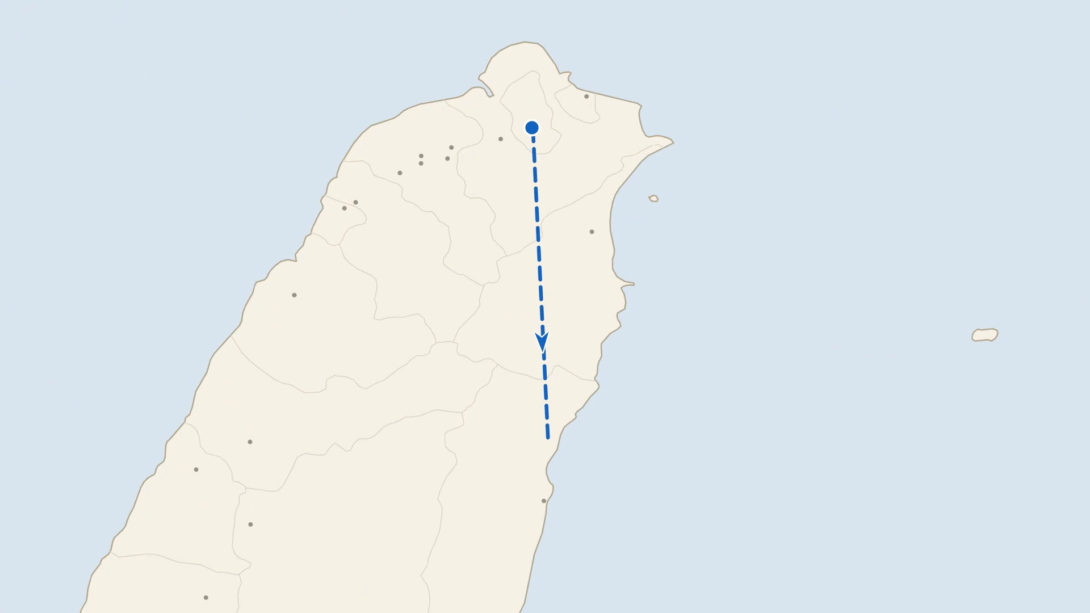
Using the location stored in your photos, the app lays your stops out on a map.
The video opens on a view wide enough to show where in the world the trip begins. Every time you move on, the map comes back: a dashed route and an arrow show where you came from and where you went, and the view closes in on the place you arrived.
A plain slideshow you can already make in a gallery app. What this app states is not only the places in your photos, but the journey between them.
There are no place names on the map. It is there to show the shape of the trip, not to label it.
Your five favorites come back at the end
Star up to five photos and they return, full size, in a highlight section at the end of the video. The one shot you liked best gets to close the story.
You see the whole video before it is made
Before rendering starts, a storyboard lists every scene in playback order: which photos appear where, and how long the video will run. You look it over, then save.
It never goes online
The map ships inside the app. There is no account to create, no API key to get, nothing to configure.
And your photos never leave your device. It works the same on a plane, or in a hotel with no signal.
The wait is usually about as long as the video
How long it takes depends on your device and on how many photos you add.
On an older phone it can take a little longer than the video itself.
On a phone, turn the screen off, use another app - the work continues.
Progress appears in a notification, and a sound tells you when it is done.

Differences between the PC and smartphone versions
PC (Windows) | Phone (Android) |
| Drop in photos, or whole folders | Pick from your gallery, a whole day at a time |
| Up to 200 photos | Up to 100 photos |
| You choose where to save it | Saved to your device gallery |
| Progress is shown in the app | Keeps going with the screen off; progress in a notification |
| JPEG / PNG, plus HEIC and RAW when your OS can read them | JPEG / PNG, plus HEIC and RAW when your device can read them |
| Windows 10 / 11 (64-bit); N and KN editions are not supported | Android 10 or later |
System Requirements
On a PC
- Windows 10 / 11 (64-bit)
- Windows N and KN editions are not supported
- JPEG and PNG are always supported, and HEIC and RAW photos are read as well when your OS can decode them
- No internet connection is needed
On a phone
- Android 10 or later
- JPEG and PNG are always supported, and HEIC and RAW photos are read as well when your device can decode them
- No internet connection is needed
Both
- Video is exported as a landscape MP4. Vertical video is not supported
- No background music, no captions, no manual editing
- Map scenes need the location stored in the photo. Photos without it still appear in the video; they simply don't drive the map
- Made for personal use
Get the app
Travel Story Creator is on the Microsoft Store for Windows, and on Google Play for Android.
Neither one needs an account or an API key. Install it, hand it your photos, and that is the whole setup.

Windows 10 / 11
(64-bit; N and KN editions are not supported)
Android 10 or later
Frequently asked questions
Do my photos get sent anywhere?
No. The app never connects to the internet. The map ships inside it, so your photos never leave your device.
Can it read HEIC or camera RAW files?
JPEG and PNG are always supported. HEIC and RAW photos are read as well when your PC or phone can decode them. If a photo cannot be read, the app tells you which one.
What happens to photos with no location?
They still appear in the video. They just don't drive the map. A set with no location data at all still becomes a video.
Are there place names on the map?
No. It draws coastlines and your route. It is there to show the shape of the trip, not to label it.
Can I make a vertical video?
No. Video is exported as a landscape MP4 only.
Can I add music or captions?
No, and there is no manual editing either. Getting a video without editing one is the point of the app.
What if I want to change something in the video?
There is no screen for reordering scenes or swapping photos by hand. Change which photos you hand it and build again — the same photos always give you the same video.
Where do I start?
Hand it your photos and press the button — that is the whole flow. If you would rather read it first, the app has a short How-to page: the ? button at the top right on a PC, the ⋮ menu on a phone.
Do the PC and the phone make the same video?
They work the same way. The limits differ (200 photos on a PC, 100 on a phone), so a different set of photos gives you a different video.
How do updates work?
On a PC, install the new version when one is released. On a phone, update through Google Play.
What does it cost?
One-time purchase, no subscription to any outside service.
Made with Natural Earth.
© 2026 midori no kaze